Subscribe to a rotation's shifts from Google Calendar, Outlook, or Apple Calendar to see who's on and plan ahead.
- Anyone who can see the rotation in the Home tab can grab its calendar URL.
- The My shifts only option is personal to whoever opens the dialog: it filters the feed down to that person’s shifts.
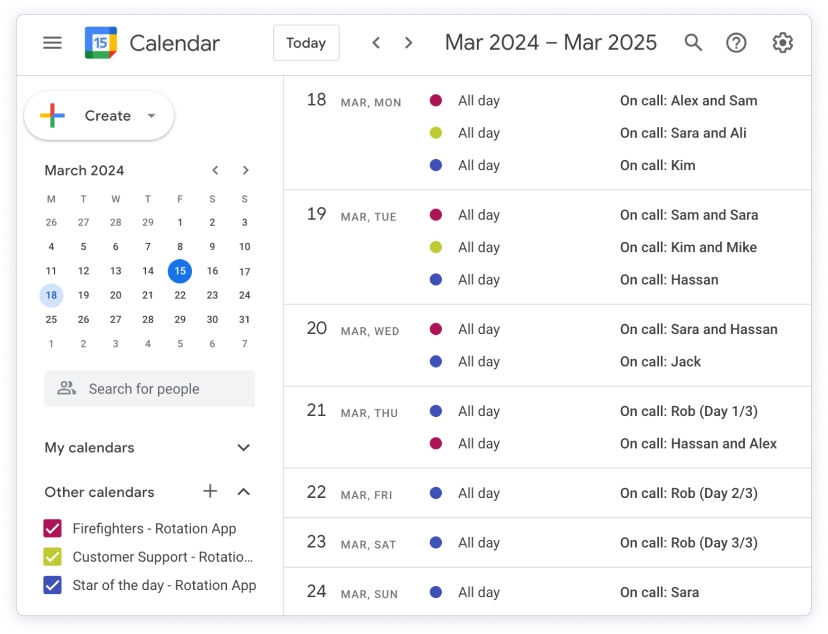
Rotation App can turn a rotation’s shifts into a calendar you subscribe to from Google Calendar, Outlook, Apple Calendar, or any app that supports calendar URLs. Once subscribed, upcoming shifts show up alongside the rest of your schedule, so the whole team can see who’s on and plan ahead.
This is a live link, not a one-time export: as shifts change, get reassigned, or get skipped, the calendar updates on its own. You add the URL once and leave it in place.
Add a rotation to your calendar
- Go to the Home tab: Learn where to find Rotation App’s Home tab
- Find your rotation
- Press 🗓️ Add to Calendar on the rotation. The Rotation Calendar dialog opens with a calendar URL.
- Copy the URL shown in the dialog.
- Add the URL to your calendar app. See the Google Calendar steps below. Other providers (Outlook, Apple Calendar, etc.) work the same way; each just calls the option something slightly different, so if you’re not sure where it lives, search for “How to add a calendar from URL to <name of your calendar app>”.
That’s it. The rotation’s shifts now appear in your calendar and stay in sync.
Add to Google Calendar
Google Calendar is the most common setup, so here are the exact steps once you’ve copied the calendar URL from the dialog:
- Open Google Calendar on your computer. (Adding a calendar by URL isn’t available in the mobile apps, so do this once on the web and it’ll then show up on your phone too.)
- In the left sidebar, find Other calendars and click the + next to it.
- Choose From URL.
- Paste the calendar URL you copied from Rotation App, then click Add calendar.
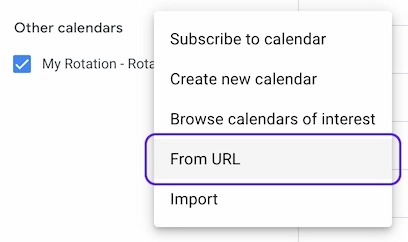
Your rotation appears under Other calendars and its shifts show up in your calendar grid. This is the same example screen shown in the Add to Calendar dialog inside Slack.
Choose what to sync: all shifts or just yours
The dialog has a dropdown that controls which shifts the calendar URL includes:
- All shifts: every shift in the rotation, for every assignee. Best for a shared team calendar where everyone wants to see who’s on.
- My shifts only: only the shifts where you’re assigned. Best for a personal calendar when you just want to know when it’s your turn.
Switching the dropdown updates the URL in the dialog, so copy the URL after you’ve picked the option you want. The two produce different links, so you can subscribe to both if you like (for example, your own shifts on your personal calendar and the full rotation on a team calendar).
Add a whole cluster to your calendar
If you use rotation clusters, you can subscribe to the entire cluster at once instead of adding each rotation separately. Open the cluster’s calendar dialog to get a single URL that merges the shifts of every rotation in the cluster into one feed. The same All shifts / My shifts only choice applies.
What’s included in the calendar
- Past and upcoming shifts. The feed contains recent historical shifts as well as the shifts scheduled ahead, so you get context for both what happened and what’s coming.
- Estimated timings for manual rotations. Rotations that don’t run on a fixed schedule don’t have exact future dates. For these, Rotation App estimates upcoming shift timings from the typical length of recent shifts and marks those events with an (estimated) label. Treat estimated shifts as a best guess that firms up as real shifts are recorded.
Each event is titled with the assignee (or assignees, for group rotations) and the rotation name, for example “Alice, Bob (Support On-Call)”. Events are added as Free, so subscribing to a rotation won’t make you look busy or block your availability in your calendar.
Keeping the calendar in sync
The calendar updates automatically, so you don’t need to re-add anything when shifts change. Calendar providers refresh linked URLs on their own schedule, though. Depending on the provider, it can take up to 24 hours for a change in Rotation App to show up in your calendar. If a recent change isn’t visible yet, that refresh delay is usually why.